





What This Does #
Shows you all your chatbots and lets you manage them easily.
When to Use This #
- Checking on your existing bots
- Switching between different bots
- Organising your bots into folders
Main Dashboard Sections #
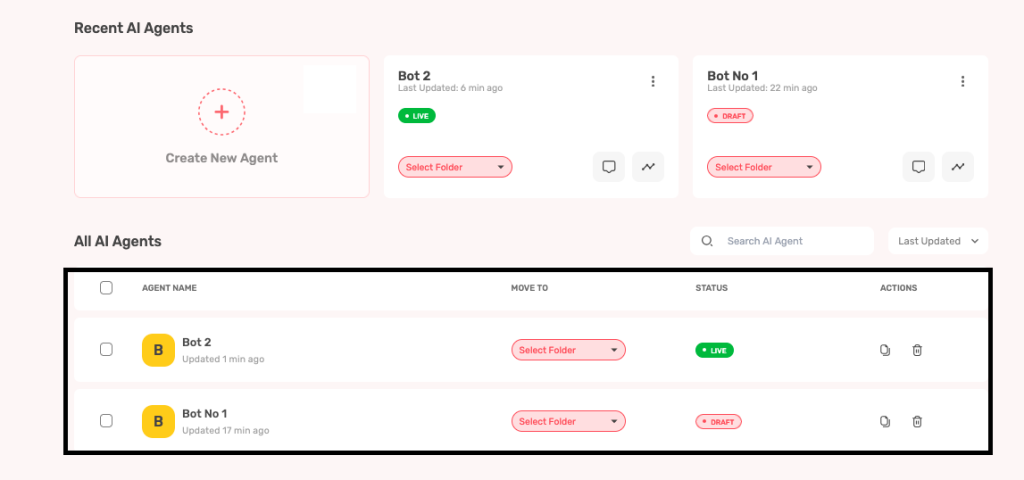
A. Recent AI Agents
- Shows your most recently worked-on bots
- Quick access to bots you’re actively developing
- Displays the current status of each bot

B. All AI Agents
- Complete list of all your bots
- Table format with columns for:
- Agent Name, Folder location Status (Active, Draft)Actions (Edit, Delete)
Understanding Bot Status #
- Green Colour: Bot is live and working
- Red Colour: Bot is in draft mode
How to Use the Dashboard #
A. Find a Bot
- Use the search bar to find specific bots.
- Or scroll through the “All AI Agents” list.
B. Open a Bot
- Click on the bot name to edit it
- This takes you to the Build section
C. Organise Bots
- Use the “Move To” dropdown to put bots in folders
- Create new folders by typing a folder name
Tips for Organisation #
- Create folders like “Live Bots”, “Testing”, “Archive”
- Use clear naming conventions for your bots
- Regularly check bot status indicators