
What This Does #
Allows your bot to learn from documents stored in your Google Drive, like PDFs, Word docs, and spreadsheets.
When To Use This #
- You have important company documents in Google Drive
- You want to include training materials or guides
- You have policies or procedures stored as files
- You want to keep bot content synced with your Drive files
Step-by-Step Instructions #
A. Go to Source Links
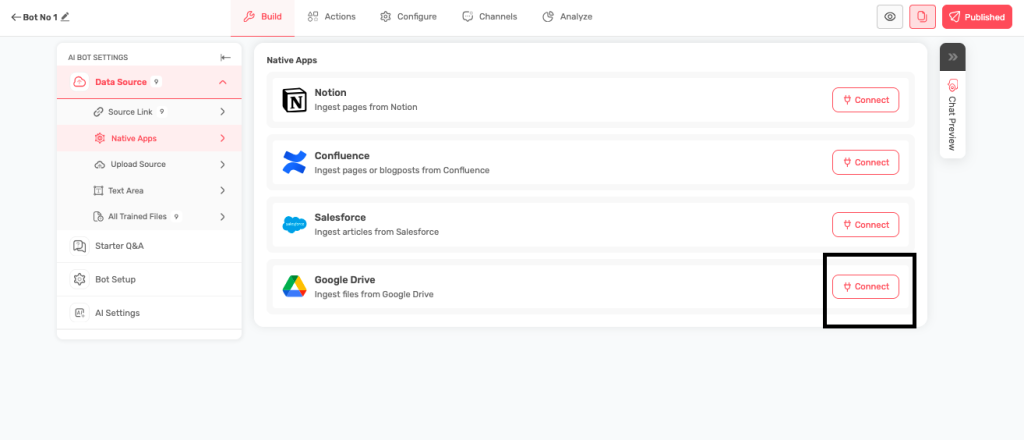
- Navigate to the Build tab, and then under Data Source sub-tab go to Native Apps.
- Click on Connect for Google Drive.
B. Connect Your Account
- Click the “Connect” button next to Google Drive.
- A Google sign-in window will open.
- Sign in with your Google account.
- Google will ask for permission to access your Drive files
- Review the permissions and click “Allow”
C. Fetch the Content & Train your Bot
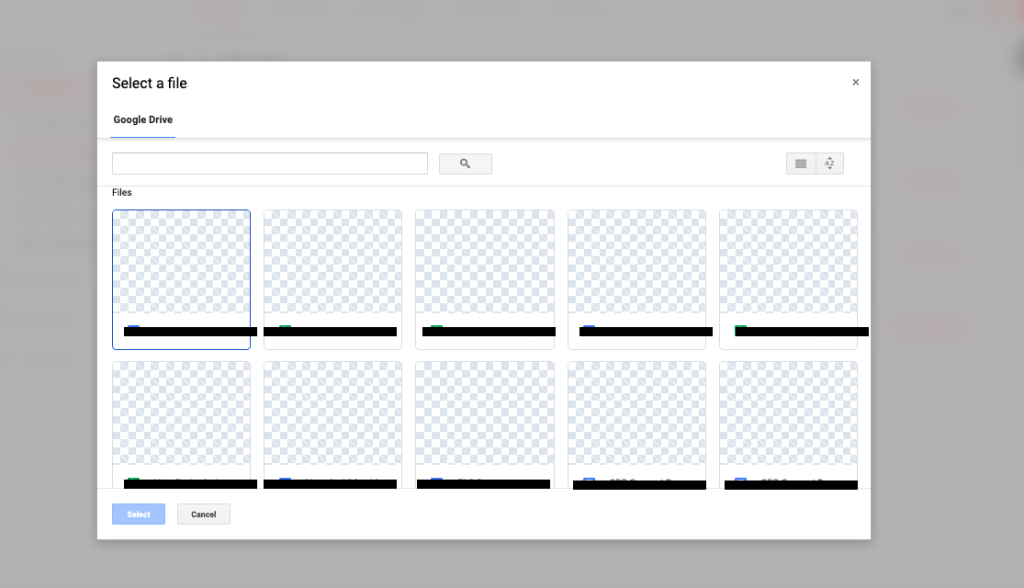
- You will be redirected to the section where you can choose your Google configuration that you would like to use for bot training.
- Select the appropriate files that you would like to use to train your bot on.
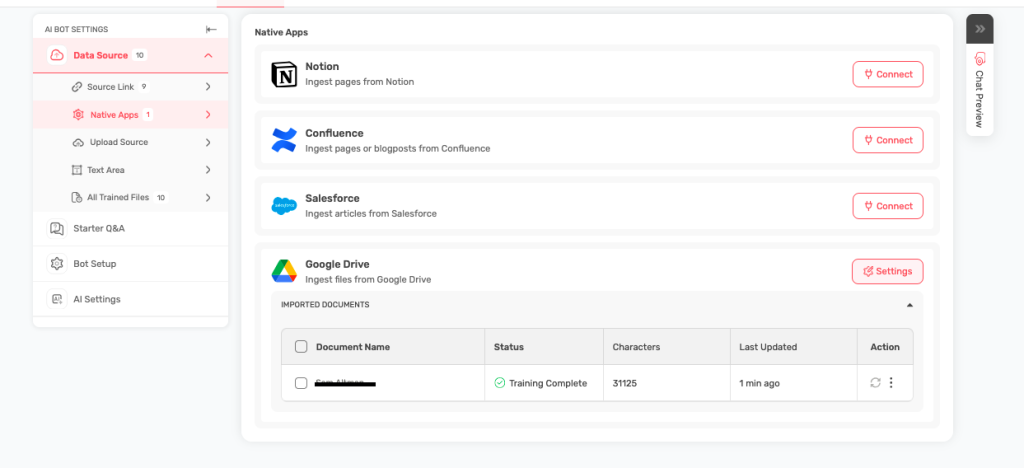
- Once the files are imported and your bot is trained, you will be able to see the imported files under Google Drive under Native Apps.
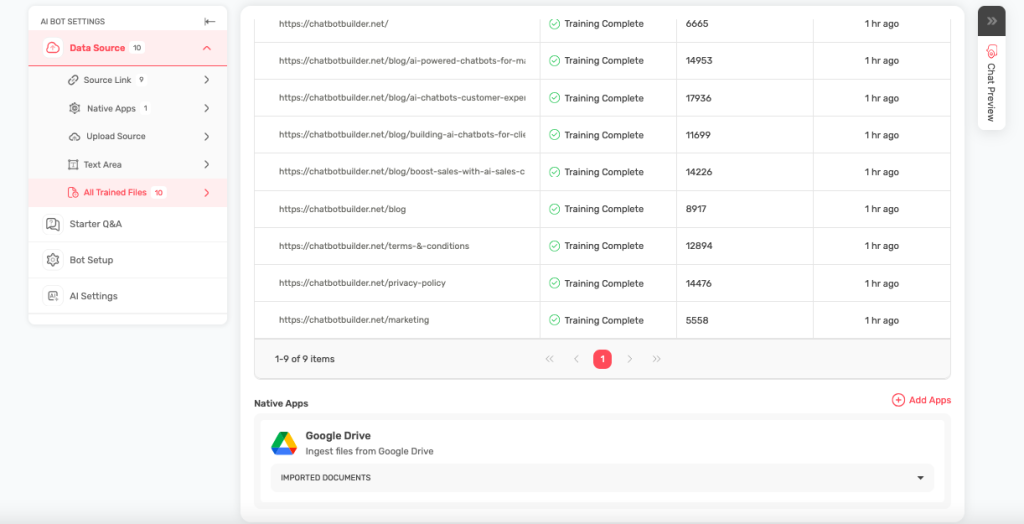
- Once the bot training is completed, you can navigate to the All Trained Files section. Successfully processed files will appear here
What Files Work Best #
- PDF documents (manuals, guides, policies)
- Word documents (.docx files)
- Text files with company information
- Spreadsheets with product information
Important Notes #
- Only files you have access to will be synced
- Large files may take longer to process
- The bot will learn from text content in these files
- Changes to your Drive files will sync automatically
Troubleshooting #
- Connection failed? Try using a different browser or clearing cookies
- No files appearing? Make sure files aren’t in private folders
- Permission errors? Check that you’re using the right Google account
Tips for Success #
- Organize relevant files in specific Drive folders
- Use clear, well-structured documents
- Keep file names descriptive and organized
- Regularly update your documents for current information