
Notion integration connects your bot to your Notion workspace, allowing it to access and learn from your team’s documentation, knowledge bases, databases, and collaborative content. This integration is particularly powerful for teams that use Notion as their primary documentation and knowledge management platform.
Optimal Use Cases #
This integration works best when your team maintains comprehensive documentation in Notion, such as company wikis, process documentation, standard operating procedures, frequently asked questions databases, product information pages, and team knowledge repositories. It’s especially valuable for organisations that have invested heavily in organising their knowledge within Notion.
How to train your bot using your Notion data #
A. Locate the Integration Option Begin in the Build section, navigate to Data Source in the sidebar, then select Native Apps. Find the Notion section, which is marked with Notion’s distinctive black “N” logo.

B. Begin the Connection Process: Click the “Connect” button adjacent to the Notion option. This will open a new browser window or tab that redirects you to Notion’s authorisation system.
C. Authenticate with Notion: If you’re not already logged into Notion, you’ll be prompted to enter your Notion account credentials. If you have multiple Notion workspaces, you may need to select the appropriate workspace.
D. Review Access Permissions: Notion will display a detailed view of what Chatbotbuilder is requesting access to. This screen shows which pages, databases, and content areas will be accessible to your bot. Review this information carefully.
E. Select Specific Content: Choose which specific pages, databases, or content areas you want to share with your bot. Be selective here – only include content that would be helpful for customer interactions and avoid sensitive internal information.
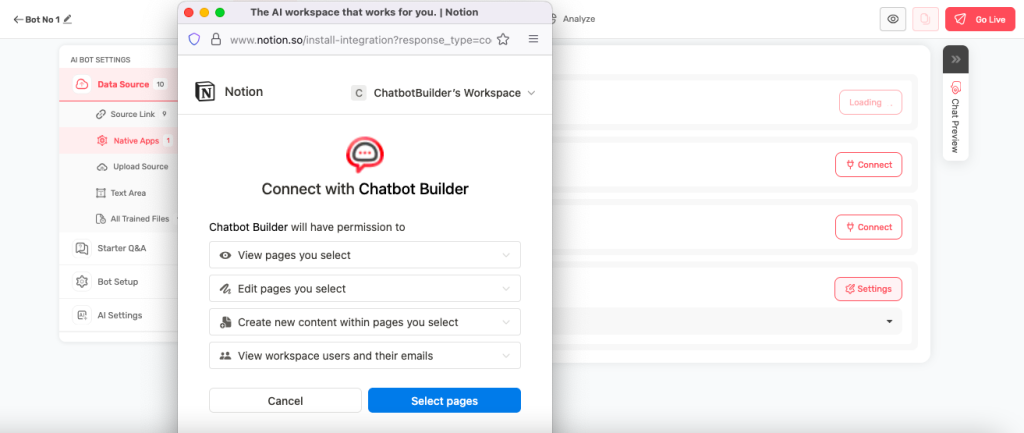
F. Verify Content Import : The system will begin importing your selected Notion content. This process may take up to a minute or two, depending on the amount of content you’ve chosen to share. You can navigate to the All Trained Files section to see the data that was used to train the bots.
Content Selection Strategy #
A. Recommended Content Types: Focus on customer-facing documentation such as product guides, frequently asked questions, support procedures, company policies that affect customers, and well-maintained knowledge base articles.
B. Content to Avoid: Exclude internal team discussions, private planning documents, personal notes and drafts, sensitive business information, and outdated or inaccurate documentation.
C. Quality Considerations: Select pages that are well-organised with clear headings and current information. Avoid pages that are frequently changing or contain incomplete information.
Managing the Integration #
A. Ongoing Access Control: You can modify which pages your bot has access to at any time by disconnecting and reconnecting the integration with different selections.
B. Automatic Content Updates: New pages added to shared areas of your Notion workspace will automatically become available to your bot, keeping the knowledge base up to date.
C. Permission Management You can adjust page selections through your Notion workspace settings, giving you granular control over what information your bot can access.
Content Structure Optimisation #
A. Page Organisation: Maintain well-structured Notion pages with clear headings, consistent formatting, and logical information hierarchy. This structure helps your bot provide more accurate and helpful responses.
B. Information Currency: Regularly review and update your Notion content to ensure accuracy. Outdated information in Notion will lead to outdated responses from your bot.
C. Content Quality: Remove or archive outdated, incorrect, or irrelevant information from shared Notion areas to maintain the quality of your bot’s knowledge base.
Testing and Validation #
A. Post-Integration Testing: After connecting Notion, test your bot with questions related to the imported content to ensure the integration is working properly and responses meet your quality standards.
B. Response Quality Assessment: Monitor how well your bot responds to questions that should be answered using Notion content, and adjust your content selection if responses aren’t meeting expectations.
C. Ongoing Monitoring: Regularly check that your bot is providing accurate information from Notion sources, especially after making significant updates to your Notion workspace.
Managing Your Connection #
- You can disconnect and reconnect anytime
- Update page selections in your Notion settings
- New pages in shared areas will sync automatically
Tips for Success #
- Keep your Notion pages well-organised and current
- Use clear headings and structure in your pages
- Remove outdated or incorrect information
- Test your bot after connecting to ensure good responses