
What This Does #
Controls when and how your chatbot appears to website visitors, optimizing engagement timing and user experience.
When to Use This #
- You want to control when the chat icon appears
- You need to optimize engagement timing
- You want to reduce intrusive pop-ups
- You’re testing different engagement strategies
Step by Step Instructions #
- Configure Custom Text Pop-up
- Navigate to Channels and then to Chatbot
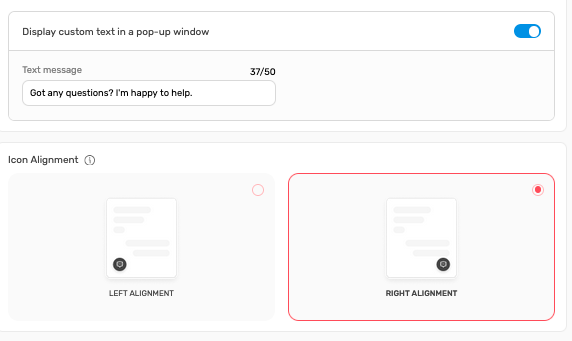
- Toggle “Display custom text in a pop-up window” ON/OFF
- Enter custom message (e.g., “Got any questions? I’m happy to help.”)
- Keep message under character limit (39/50 characters shown)
- Set Icon Alignment
- Choose between Left Alignment or Right Alignment
- Right alignment is typically preferred for most websites
- Consider your website layout when choosing
- Access Trigger Settings
- Scroll down to “ChatBot Launcher Trigger Behaviour” section

- You’ll see three main trigger options:

- Configure Trigger Behaviors
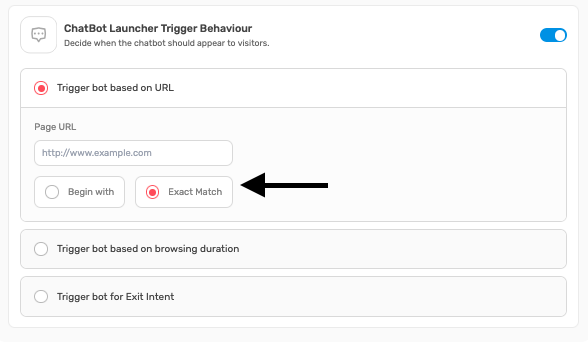
- Trigger not based on URL: Universal trigger for all pages
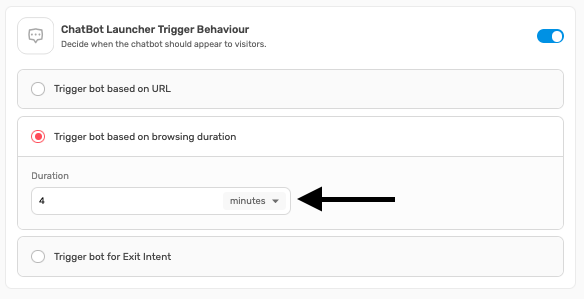
- Trigger not based on browsing duration: Time-based activation
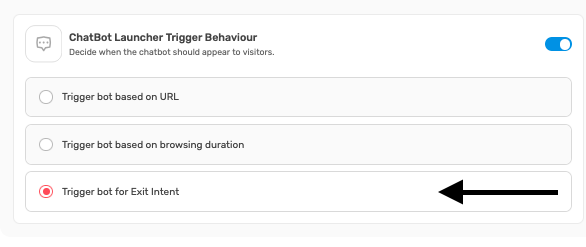
- Trigger not for Exit Intent: Activates when user shows intent to leave
Understanding Each Trigger Type #
A. URL-Independent Trigger:
- What it does: Chat appears on all pages equally
- Best for: Consistent support availability across entire website
- User experience: Immediate access to help on any page
- Considerations: May appear intrusive on some pages
B. Browsing Duration Trigger:
- What it does: Chat appears after user spends specified time on site
- Default setting: Usually 4 minutes
- Best for: Allowing users to browse before offering assistance
- User experience: Less intrusive, more natural timing
C. Exit Intent Trigger:
- What it does: Detects when user is about to leave and offers help
- Technology: Tracks mouse movement patterns
- Best for: Last-chance engagement and conversion optimization
- User experience: Captures users before they abandon site
Pop-up Message Best Practices #
Effective Message Examples:
- “Got any questions? I’m happy to help!” (friendly)
- “Need assistance? I’m here to help!” (supportive)
- “Questions about our products? Ask me!” (product-focused)
- “Looking for something specific? Let me help!” (solution-oriented)
Message Guidelines:
- Keep under 50 characters for optimal display
- Use friendly, helpful tone
- Include question mark to encourage interaction
- Avoid being pushy or sales-heavy
- Match your brand voice and personality
Timing Strategies by Business Type #
E-commerce Sites:
- Browsing duration: 3-5 minutes (allow product browsing)
- Exit intent: Highly recommended for cart abandonment
- Pop-up timing: After viewing 2-3 products
Service Businesses:
- Browsing duration: 2-4 minutes (quicker engagement)
- Exit intent: Good for capturing leads
- Pop-up timing: After viewing services page
SaaS/Software:
- Browsing duration: 5-7 minutes (allow feature exploration)
- Exit intent: Excellent for trial conversions
- Pop-up timing: After viewing pricing or features
Support/Documentation Sites:
- Browsing duration: 1-3 minutes (users need help quickly)
- Exit intent: Moderate priority
- Pop-up timing: Immediate availability preferred
Advanced Trigger Combinations #
Multi-Trigger Strategy:
- Combine multiple triggers for comprehensive coverage
- Example: Duration trigger at 4 minutes + Exit intent trigger
- Ensures help is available when users need it most
- Balances availability with user experience
Page-Specific Considerations:
- Homepage: Longer delay to avoid interrupting first impression
- Product pages: Medium delay to allow browsing
- Pricing pages: Shorter delay as users likely have questions
- Contact pages: Immediate availability, as users are already seeking help
Icon Alignment Considerations #
Right Alignment (Recommended):
- Pros: Standard web convention, doesn’t interfere with navigation
- Cons: May conflict with other right-side elements
- Best for: Most websites and layouts
Left Alignment:
- Pros: Unique positioning, may stand out more
- Cons: May interfere with navigation or content
- Best for: Sites with right-side conflicts or unique layouts
Testing Your Trigger Strategy #
A/B Testing Approach:
- Set up initial trigger configuration
- Monitor engagement rates and user feedback
- Test different timing intervals
- Try different pop-up messages
- Analyze conversion and satisfaction data
- Optimize based on results
Key Metrics to Monitor:
- Chat engagement rate (how many visitors start conversations)
- Conversion rate from chat to desired action
- User satisfaction scores
- Bounce rate impact
- Page load time effects
User Experience Optimization #
Balancing Availability and Intrusiveness:
- Make help available without being annoying
- Consider user journey and intent
- Provide value before asking for engagement
- Allow easy dismissal of pop-ups
Mobile Considerations:
- Ensure triggers work well on mobile devices
- Consider smaller screen real estate
- Test touch interactions and responsiveness
- Optimize pop-up size and positioning for mobile
Common Trigger Mistakes #
Avoid These Issues:
- Too aggressive timing that annoys users
- Pop-up messages that are too long or unclear
- Inconsistent trigger behavior across pages
- Not considering mobile user experience
- Forgetting to test on different devices and browsers
Troubleshooting Trigger Issues #
Common Problems:
- Triggers not working: Check JavaScript conflicts
- Pop-ups not appearing: Verify trigger settings and timing
- Wrong timing: Adjust duration settings
- Mobile issues: Test responsive design and touch functionality
Performance Considerations:
- Ensure triggers don’t slow down website
- Monitor for conflicts with other website scripts
- Test loading times with triggers enabled
- Verify smooth operation across different browsers
Tips for Success #
- Start with conservative timing and adjust based on data
- Test different approaches with real users
- Monitor analytics to understand user behaviour
- Keep pop-up messages short and helpful
- Regular review and optimization of trigger settings
- Consider seasonal adjustments for different user behaviours