
Overview #
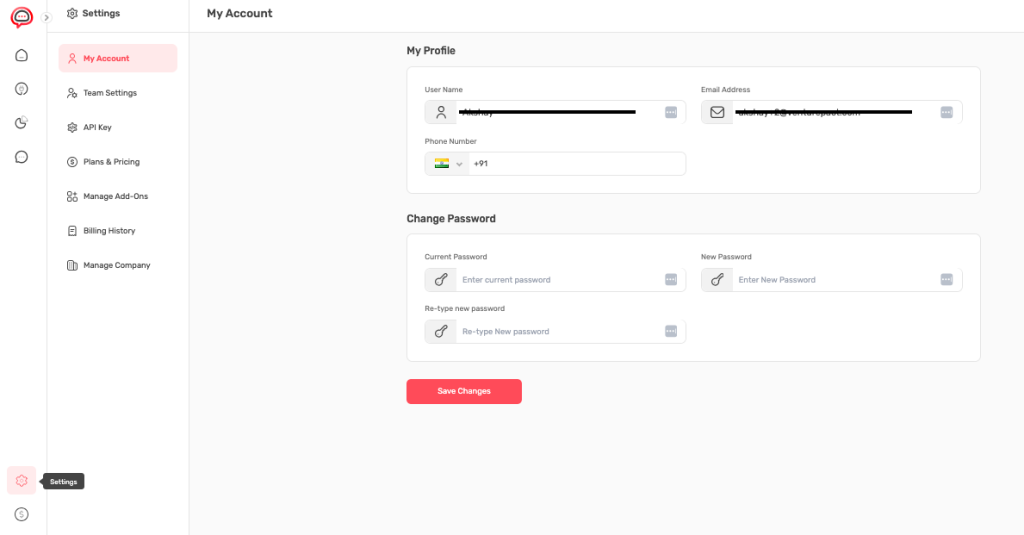
Profile Management in ChatbotBuilder.net allows you to maintain your personal account information, security settings, and contact preferences. This centralized system ensures your account remains secure while keeping your information current for notifications, team collaboration, and platform communications.
Understanding Your Profile Fields #
User Name Configuration #
Purpose: Your display name appears throughout the ChatbotBuilder.net platform, including team member lists, conversation logs, and system notifications.
How It Works:
- Display Identity: This name identifies you to other team members
- System Recognition: Used in activity logs and audit trails
- Professional Representation: Appears in shared workspaces and collaboration areas
- Notification Personalization: Used in email notifications and system messages
Best Practices:
- Use your professional name for business accounts
- Keep it consistent across your organization
- Avoid special characters that might cause display issues
- Update immediately if your name changes
Email Address Management #
Primary Functions: Your email serves multiple critical purposes in the platform.
Core Uses:
- Account Login: Primary authentication credential
- System Notifications: Billing alerts, security warnings, feature updates
- Team Communications: Invitations, role changes, and collaboration requests
- Password Recovery: Essential for account recovery and security
- Legal Communications: Terms updates, privacy policy changes
Email Change Process:
- Verification Required: New email must be verified before activation
- Security Check: Current password confirmation may be required
- Notification Overlap: Both old and new emails receive confirmation
- Account Migration: All notifications automatically transfer to new address
Important Considerations:
- Business vs Personal: Use business email for company accounts
- Accessibility: Ensure you have ongoing access to the email address
- Security: Choose an email with strong security and two-factor authentication
- Distribution Lists: Avoid shared mailboxes for individual accounts
Phone Number Setup #
Functionality: Contact number with intelligent country code detection and selection.
Features Available:
- Country Code Selection: Automatic detection with manual override (shows +91 for India)
- Regional Formatting: Automatic formatting based on selected country
- Validation: Real-time validation for correct phone number format
- Security Applications: May be used for two-factor authentication
- Emergency Contact: Backup communication method for account issues
Setup Process:
- Country Selection: Choose your country from the dropdown menu
- Number Entry: Enter your phone number without the country code
- Format Validation: System automatically validates format
- Verification: May require SMS verification for security purposes
Updating Profile Information: Step by Step Process #
Accessing Your Profile #
- Navigation: Click Settings in the left sidebar
- Section Selection: Choose My Account from the settings menu
- Profile View: Your current information displays in editable fields
Making Changes #
Field Editing:
- Click to Edit: Click directly in any field to begin editing
- Real-time Updates: Changes are visible immediately as you type
- Field Validation: System validates information as you enter it
- Error Handling: Invalid entries are highlighted with helpful messages
Country Code Management:
- Dropdown Access: Click the country flag/code dropdown for phone number
- Search Functionality: Type country name to quickly find your region
- Automatic Formatting: Phone number format updates based on country selection
- Visual Confirmation: Selected country flag displays next to phone number
Saving Your Changes #
Save Process:
- Automatic Saving: Some changes save automatically as you edit
- Manual Save: Click “Save Changes” button to apply all modifications
- Confirmation: System provides confirmation when changes are successfully saved
- Error Resolution: Any validation errors must be resolved before saving
Validation Requirements:
- Email Format: Must be valid email address format
- Phone Number: Must match selected country’s phone number format
- Name Requirements: Cannot be empty or contain invalid characters
- Duplicate Prevention: Email addresses must be unique across the platform
Security Settings Management #
Password Security System #
Password Change Process #
Security-First Approach: ChatbotBuilder.net uses a secure three-step verification process for password changes.
Step-by-Step Password Update:
- Current Password Verification
- Purpose: Confirms your identity before allowing changes
- Security Measure: Prevents unauthorized password changes
- Field Location: First field in the Change Password section
- Validation: Must match your existing password exactly
- New Password Creation
- Field Purpose: Enter your desired new password
- Strength Requirements: System enforces strong password policies
- Real-time Feedback: Password strength indicator shows security level
- Character Requirements: Mix of uppercase, lowercase, numbers, and symbols
- Password Confirmation
- Verification Step: Re-type your new password exactly
- Error Prevention: Catches typing mistakes before saving
- Match Validation: Must match the new password field exactly
- Visual Feedback: System indicates when passwords match
- Apply Changes
- Save Button: Click “Save Changes” to implement new password
- Immediate Effect: Password change takes effect immediately
- Session Management: May require re-login for security
- Confirmation: System confirms successful password update
Password Security Requirements #
Minimum Standards:
- Length: Minimum 8 characters recommended
- Complexity: Combination of character types required
- Uniqueness: Different from previous passwords
- Platform Specific: Unique password not used on other sites
Character Composition:
- Uppercase Letters: At least one capital letter (A-Z)
- Lowercase Letters: At least one lowercase letter (a-z)
- Numbers: At least one digit (0-9)
- Special Characters: At least one symbol (!@#$%^&* etc.)
- Avoid Common Patterns: No keyboard patterns or dictionary words
Security Best Practices: Account Protection Strategies #
Password Management Excellence #
Unique Password Strategy:
- Platform Isolation: Never reuse passwords from other websites or services
- Business Separation: Use different passwords for business vs personal accounts
- Complexity Balance: Strong enough for security, memorable enough for regular use
- Password Managers: Consider using password management tools for complex passwords
Regular Security Maintenance:
- Quarterly Updates: Change passwords every 3-4 months
- Immediate Changes: Update immediately if you suspect compromise
- Breach Responses: Change password if any connected service reports a breach
- Team Changes: Update when team members leave who knew your password
Account Recovery Preparedness #
Recovery Information Currency:
- Email Accessibility: Ensure ongoing access to your registered email
- Phone Number Updates: Keep phone number current for security notifications
- Alternative Contacts: Consider backup communication methods
- Documentation: Securely document recovery processes
Security Monitoring:
- Login Alerts: Monitor for unexpected login notifications
- Activity Reviews: Regularly check account activity and access logs
- Team Access: Review team member access and permissions regularly
- Integration Security: Monitor connected services and integrations
This comprehensive profile management system ensures your ChatbotBuilder.net account remains secure, current, and optimized for your business needs while maintaining the highest standards of data protection and user experience.