





What This Does #
Allows your bot to automatically schedule appointments, demos, and meetings using your Calendly account.
When to Use This #
- You want to let customers book meetings or consultations
- You offer demos or sales calls
- You provide services that require appointments
- You want to automate scheduling without human intervention
Step-by-Step Instructions #
- Access Calendly Action
- Navigate to Actions
- Find the “CALENDLY” section
- Click “Add to list” to enable the integration

- Connect Your Calendly Account
- Click the “Connect” button
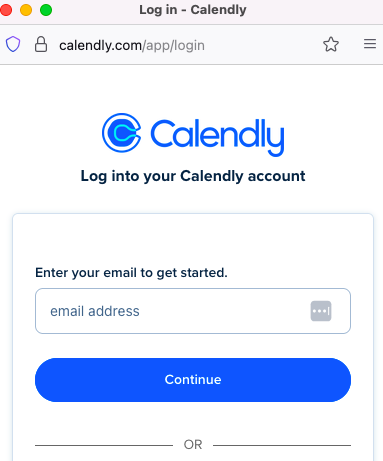
- You’ll be redirected to Calendly
- Log into your Calendly account
- Authorize Chatbotbuilder to access your calendar
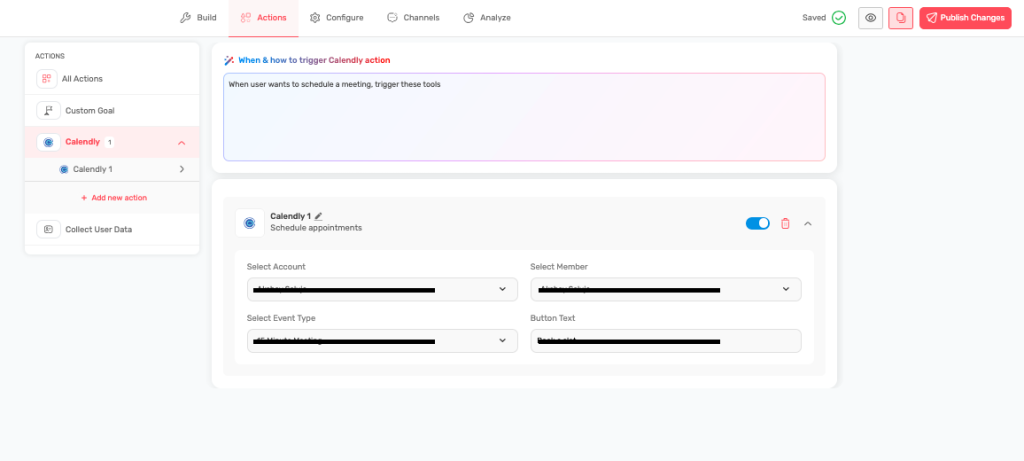
- Select Account and Calendar
- Choose which Calendly account to use
- Select the appropriate calendar
- Pick the event type customers should book
- Customize the Button
- Choose what text appears on the booking button
- Default is “Book a slot”
- Examples: “Schedule Demo”, “Book Consultation”, “Reserve Time”
- Set Trigger Conditions
- Define when the booking option should appear
- Examples: after lead qualification, when users ask about meetings
- Test to ensure it appears at the right time
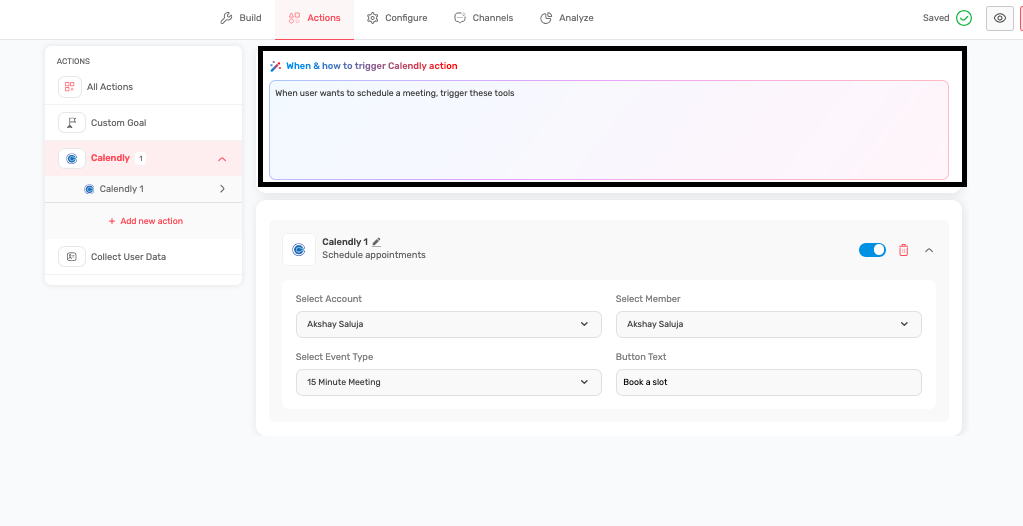
- Make sure you click on Publish to save the changes.
Best Button Text Examples #
For Sales:
- “Schedule Your Demo”
- “Book Free Consultation”
- “Get Your Custom Quote”
- “Schedule Sales Call”
For Support:
- “Book Support Call”
- “Schedule Technical Help”
- “Get Expert Assistance”
- “Book Troubleshooting Session”
For Services:
- “Schedule Appointment”
- “Book Your Session”
- “Reserve Time Slot”
- “Schedule Consultation”
When to Trigger Calendly #
After Lead Qualification:
- User provides contact information
- Shows genuine interest in product/service
- Asks about pricing or demos
- Mentions timeline for implementation
For Complex Issues:
- Bot cannot resolve technical problem
- User needs personalized assistance
- Issue requires screen sharing or detailed help
- Customer specifically requests human contact
Sales Process:
- Prospect is qualified and interested
- User asks about custom solutions
- Ready to discuss enterprise options
- Wants to see product demonstration
Best Practices #
- Only offer scheduling to qualified prospects
- Make sure your Calendly is properly configured with:
- Clear meeting descriptions
- Appropriate time slots
- Confirmation emails
- Preparation instructions
Integration Benefits #
- Automatically books meetings without human intervention
- Reduces back-and-forth scheduling emails
- Captures leads at the moment of interest
- Provides seamless customer experience
- Syncs with your existing calendar
Troubleshooting #
- Button not appearing? Check trigger conditions
- Wrong calendar showing? Verify Calendly account selection
- Customers can’t book? Check Calendly availability settings
- Connection issues? Try reconnecting your Calendly account
Tips for Success #
- Keep your Calendly calendar updated with accurate availability
- Write clear meeting descriptions so customers know what to expect
- Send confirmation emails with preparation instructions
- Follow up promptly after meetings are booked
- Monitor booking rates and adjust triggers if needed