





What This Does #
Sets up your bot’s basic behaviour, name, language, and response style.
When to Use This #
- Setting up a new bot
- Changing your bot’s personality or behaviour
- Adjusting response limits or length
- Customising for different audiences
Step-by-Step Instructions #
- Access Bot Setup
- Go to Build → Bot Setup
- You’ll see the Bot Settings configuration area
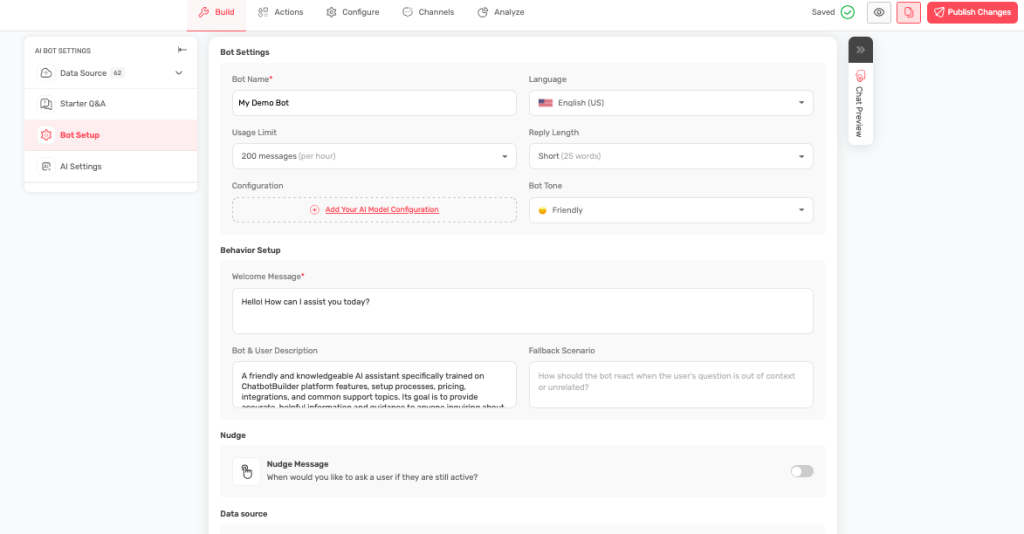
- Set Your Bot Name
- Choose a friendly name that represents your brand
- Examples: “Sarah from Support”, “Product Helper”, “Booking Assistant”
- This is how your bot introduces itself
- Choose Language
- Select your primary language (English US is the default)
- Choose the language your customers speak
- This affects how the AI understands and responds
- Set Usage Limits
- Choose how many messages users can send per hour
- Options typically include: 25, 50, 100, or unlimited
- Higher limits for busy customer service, lower for demos
- Select Reply Length
- Short: Quick, brief answers
- Medium: Balanced responses (recommended)
- Long: Detailed, comprehensive answers
- Choose Bot Tone
- Friendly: Casual, warm, and approachable
- Professional: Business-like and formal
- Custom: Write your own tone guidelines
NOTE: Make sure you click on Publish to save the changes.
Choosing the Right Settings #
For Customer Service:
- Name: “Customer Support Assistant” or “[Your Company] Helper”
- Usage Limit: 50-100 messages per hour
- Reply Length: Medium
- Tone: Friendly
For Sales:
- Name: “Sales Assistant” or “[Your Company] Advisor”
- Usage Limit: 25-50 messages per hour
- Reply Length: Medium to Long
- Tone: Professional or Friendly
For Technical Support:
- Name: “Tech Support” or “Technical Assistant”
- Usage Limit: Unlimited
- Reply Length: Long
- Tone: Professional
Tips for Success #
- Choose a name that matches your brand personality
- Start with a medium reply length and adjust based on feedback
- A friendly tone works well for most customer interactions
- Set reasonable usage limits to prevent abuse
Testing Your Settings #
- Save your changes and test the bot
- Check if responses match your expectations
- Adjust settings based on actual customer interactions
- Monitor analytics to see how settings perform